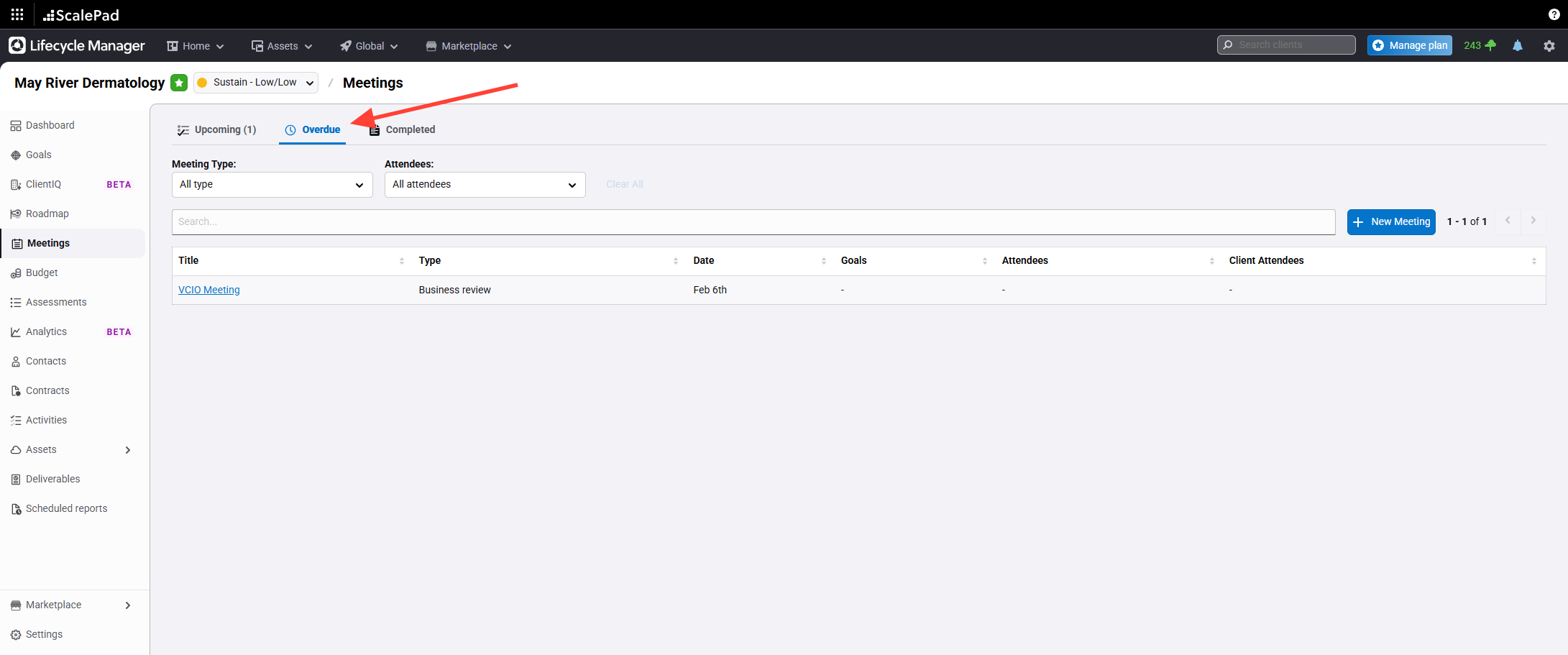
- Return to the client meeting screen and open the Overdue tab
Return to the client meeting screen.
Click the Overdue tab to view past meetings.
- Open the meeting details
Click the meeting you want to update.
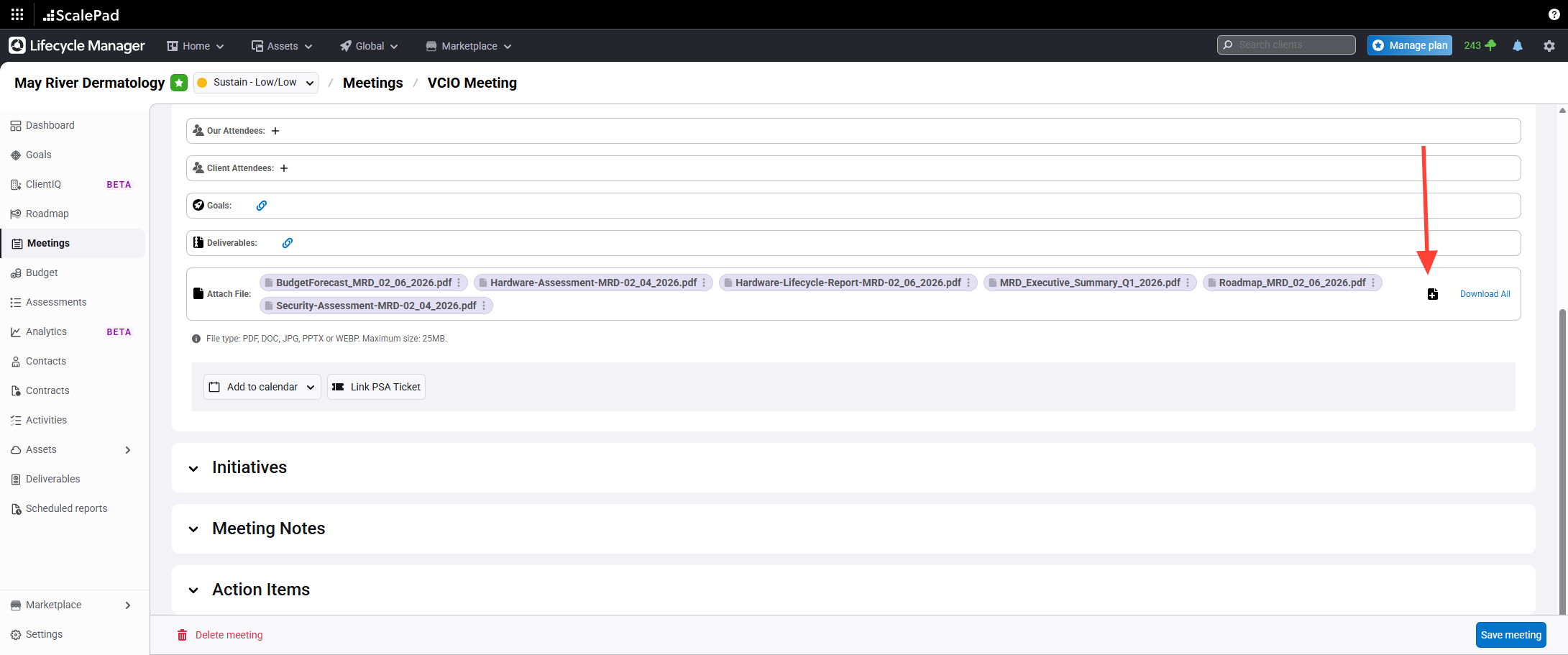
- Attach additional items to the meeting
Attach any additional items as needed.
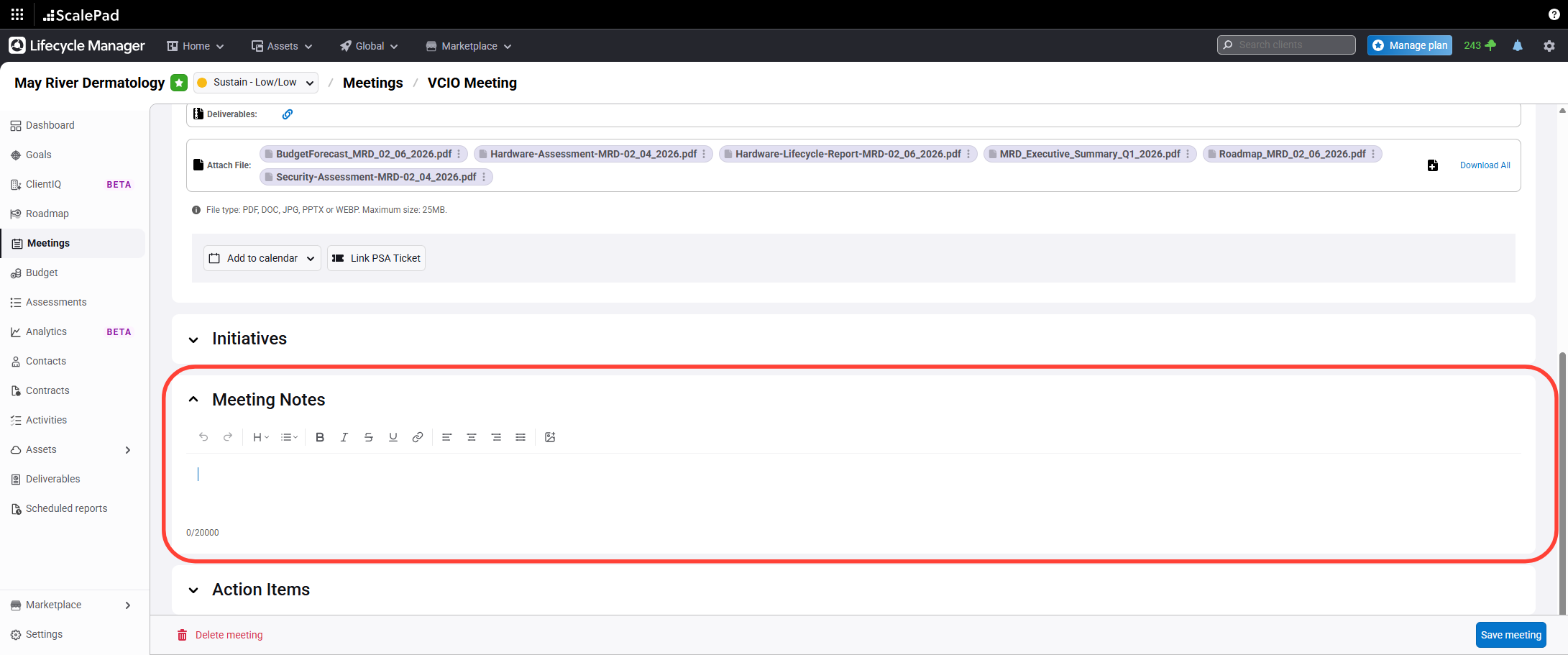
- Enter meeting notes
Enter notes from the meeting in the notes field.
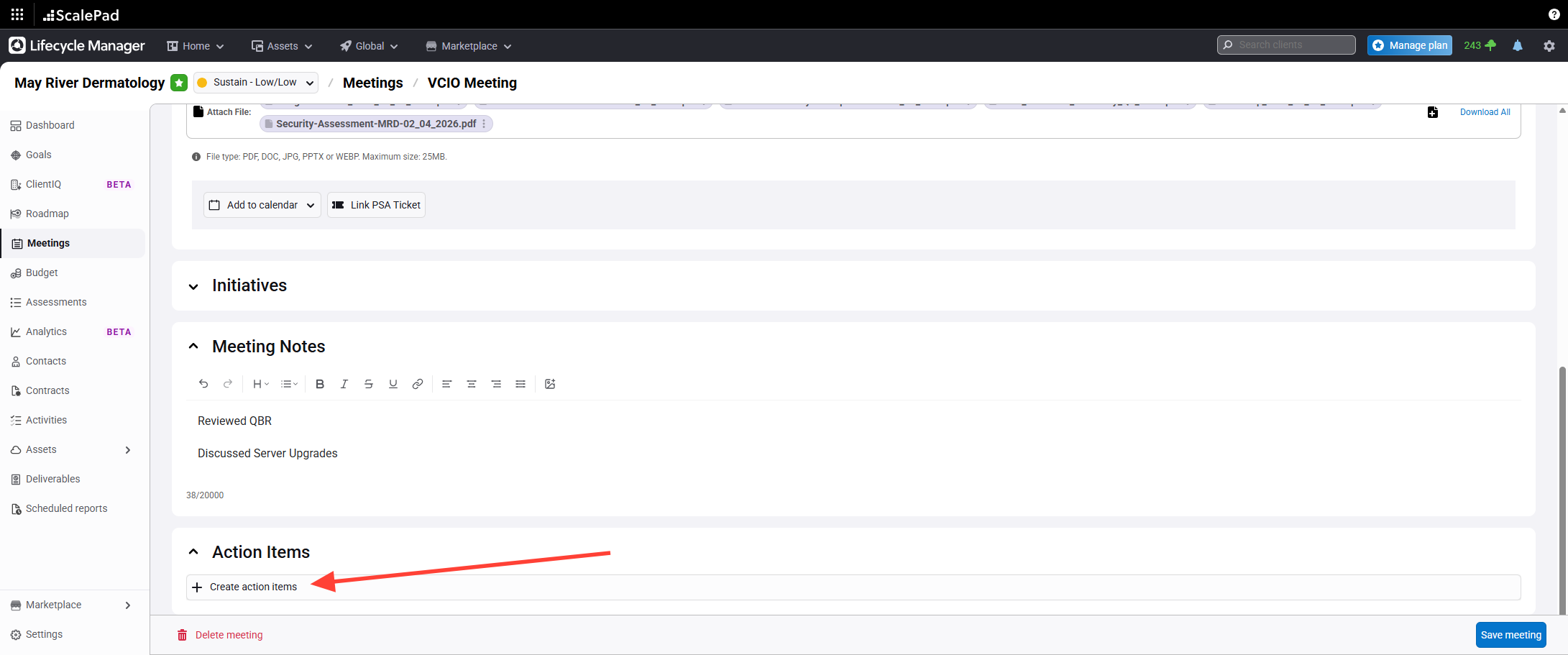
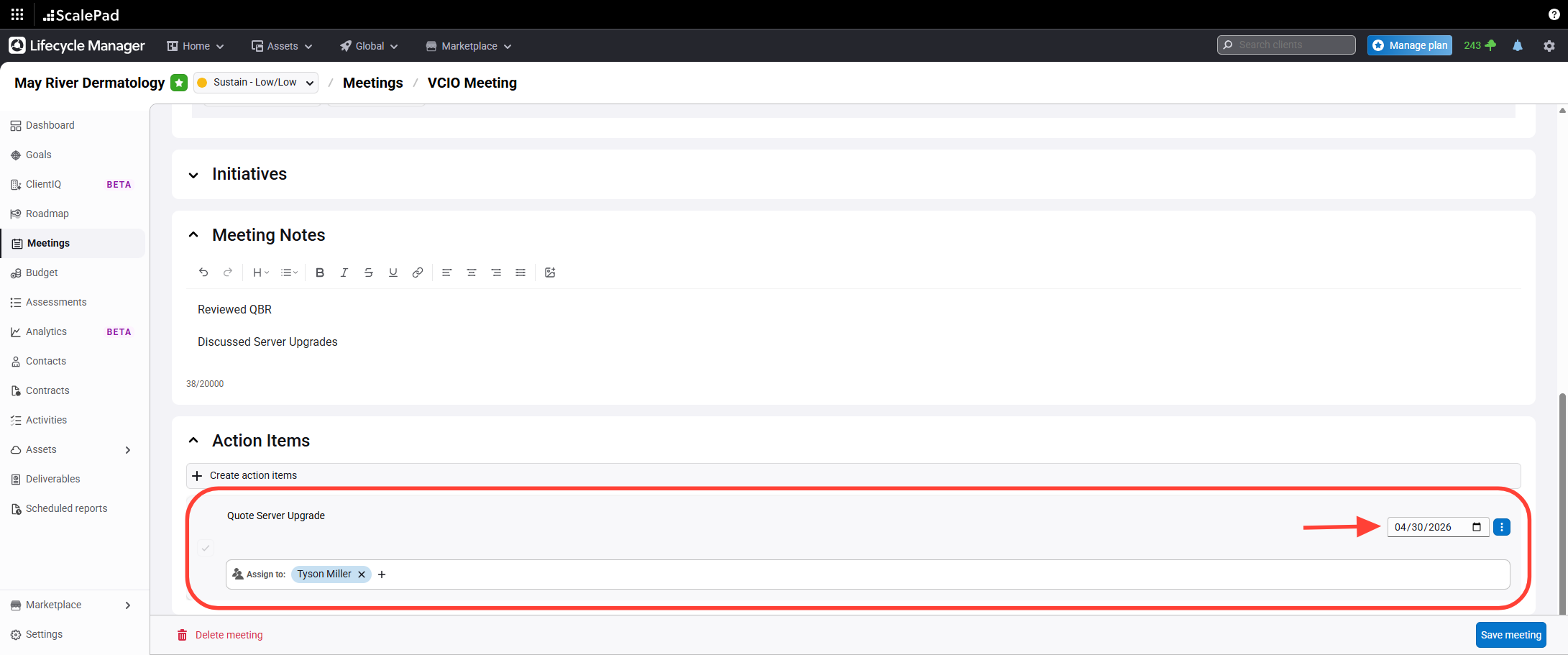
- Add action items and set due dates
Add action items for the meeting.
Enter the appropriate due date for each action item.
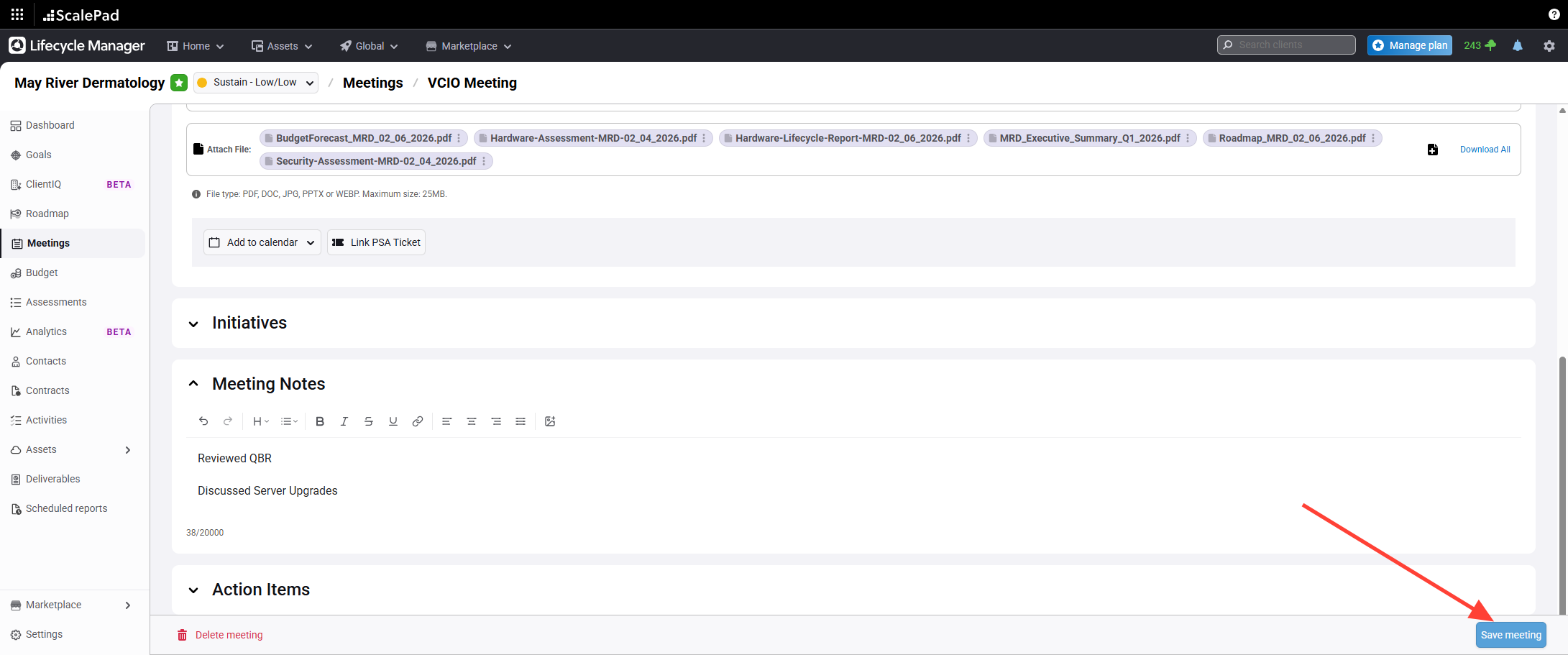
- Save the meeting record
Click Save to update the meeting.
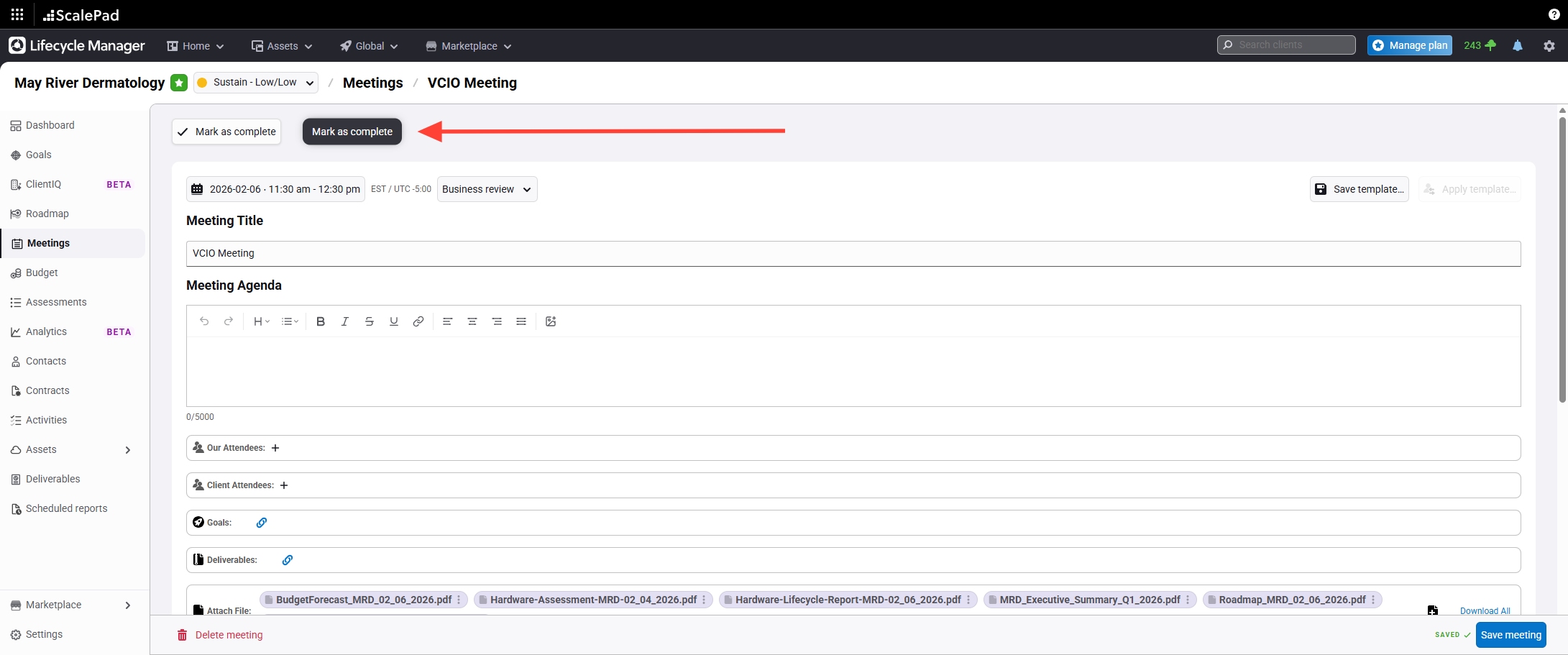
- Mark the meeting as complete
Click Mark as complete to finish.
Updating and Completing a Meeting
Updated on