// Source - https://stackoverflow.com/a/9976309 // Posted by hjpotter92, modified by community. See post 'Timeline' for change history // Retrieved 2026-05-19, License - CC BY-SA 4.0
Skip to content
Complete IT Evolved
Search guides and tutorials...
Search guides and tutorials...
Complete IT Evolved
/
ScalePad Lifecycle Manager
/
Assets (Hardware & Software)
Accessing Hardware Assets
Updated on
Mar 22, 2026
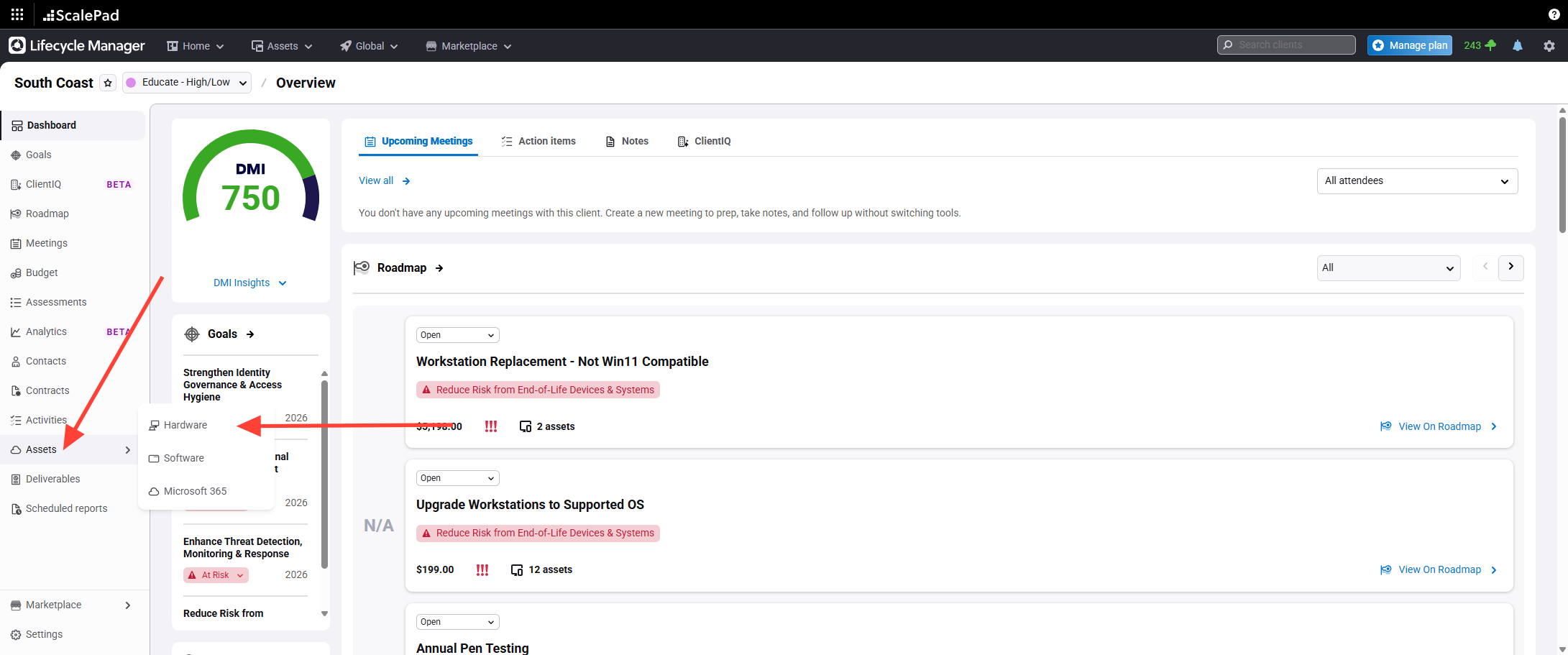
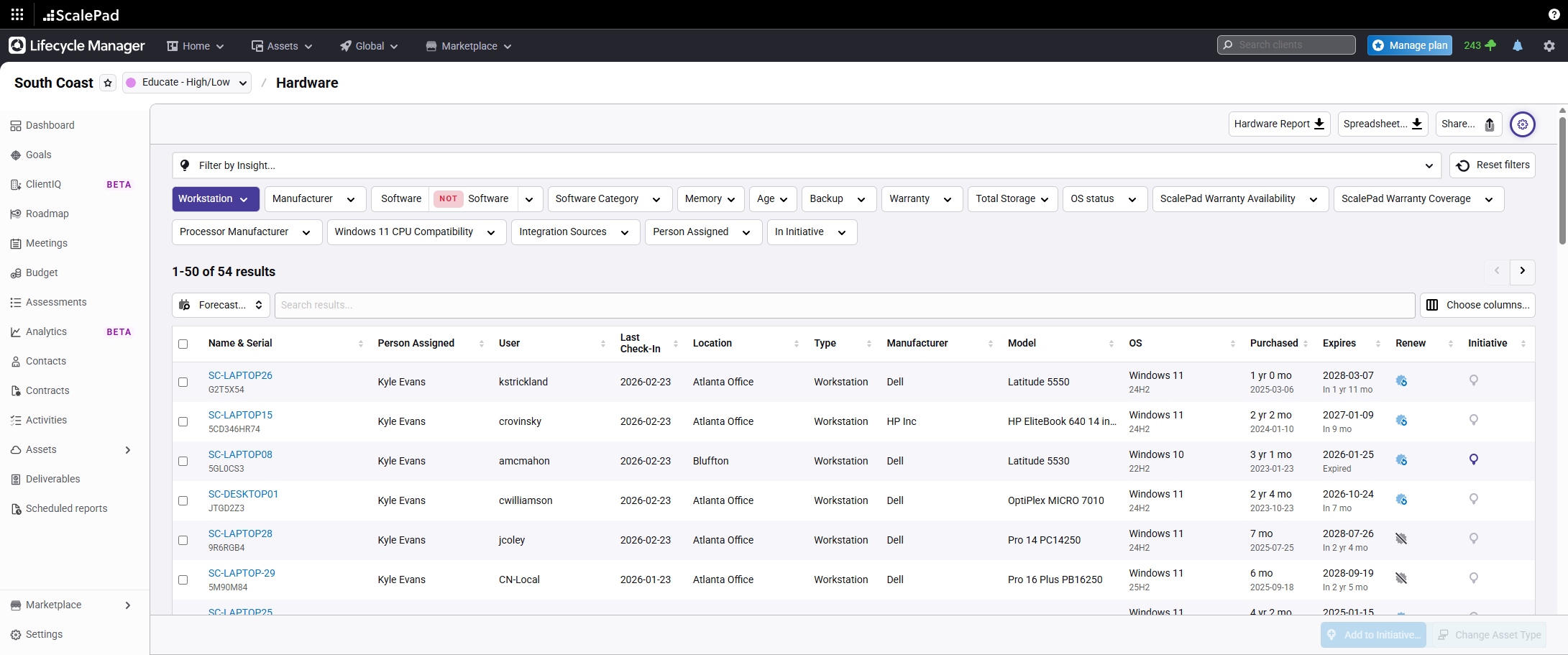
Open the Hardware Assets panel
Click Assets
and then
Hardware
in the left panel within a client.
Checklist item
Previous Article
Marking an Assessment as "Complete"
Next Article
Checklist item
Assets - Servers
ScalePad Lifecycle Manager
Signing-In
1
Lifecycle Manager Sign-In
Navigating Customers
1
Scalepad Lifecycle Manager Client Screen
Lifecycle Manager X License Assignment
1
Lifecycle Manager X - License Assignment
Client Meetings
2
Scheduling a Meeting
Updating and Completing a Meeting
Assessments
6
Starting New Assessment
Adding Comments to an Assessment
Adding Custom Responses to an Assessment
Download Assessment Report
Take Action on Assessment Results
Marking an Assessment as "Complete"
Assets (Hardware & Software)
5
Accessing Hardware Assets
Assets - Servers
Assets - Network
Assets - Workstations
Accessing Software Assets
Initiatives
4
Initiatives Overview
Creating New Initiative
Create Initiatives - From Assets
Create initiatives - From Assessments
Other Resources
Support Portal
Email Archiving
MyPC Connect
Remote Workforce
MyGlue
Managed Services Hub
Fluid Voice SS
Mitel
Avanan Email Security
Visible-IQ Security Awareness
Reference Information
ArchivePro
VIT-Sync
Print Article
Still Need Help?
Contact Us