- Open the assessment
Open the assessment you want to mark as complete.
- Mark the assessment as complete
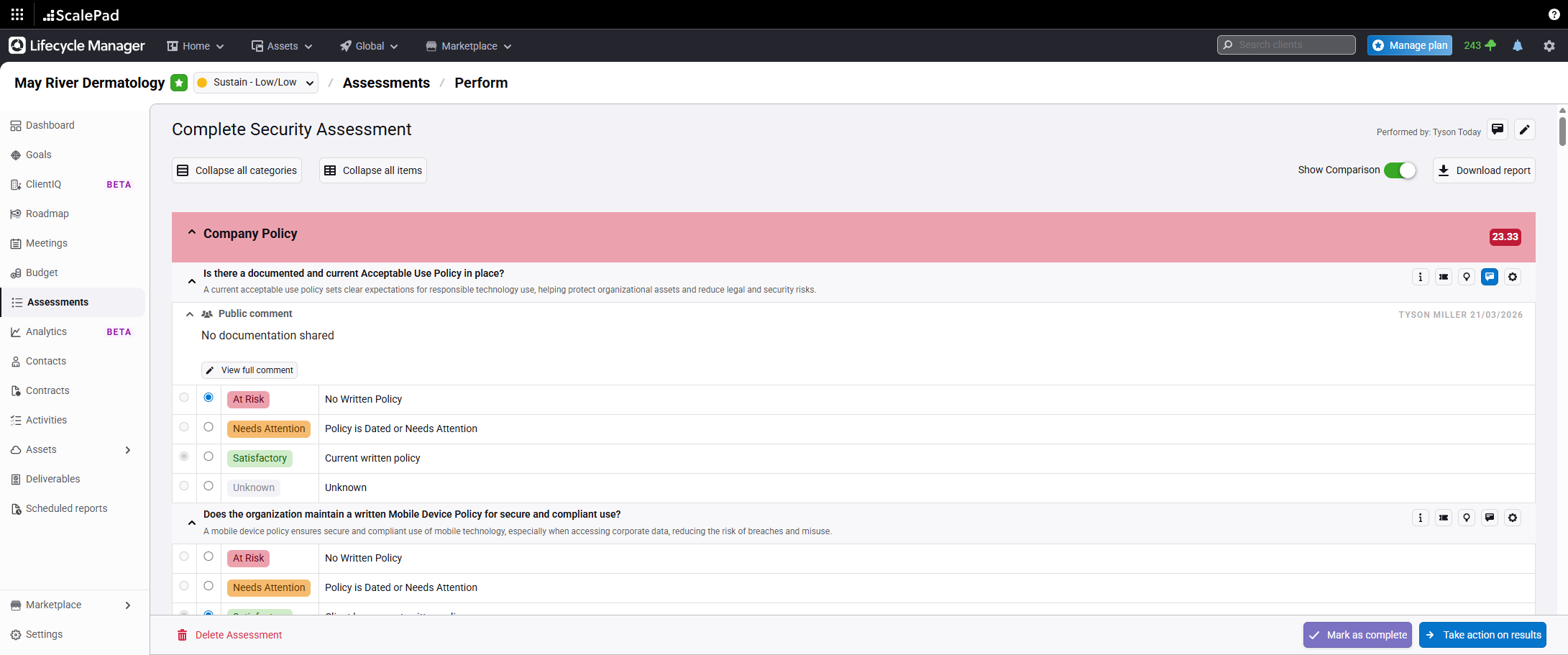
Click Mark as complete in the bottom right corner.
** Marking as "Complete" allows the assessment to be used in Reports and for future comparative assessments.
- Optionally mark as incomplete to continue editing
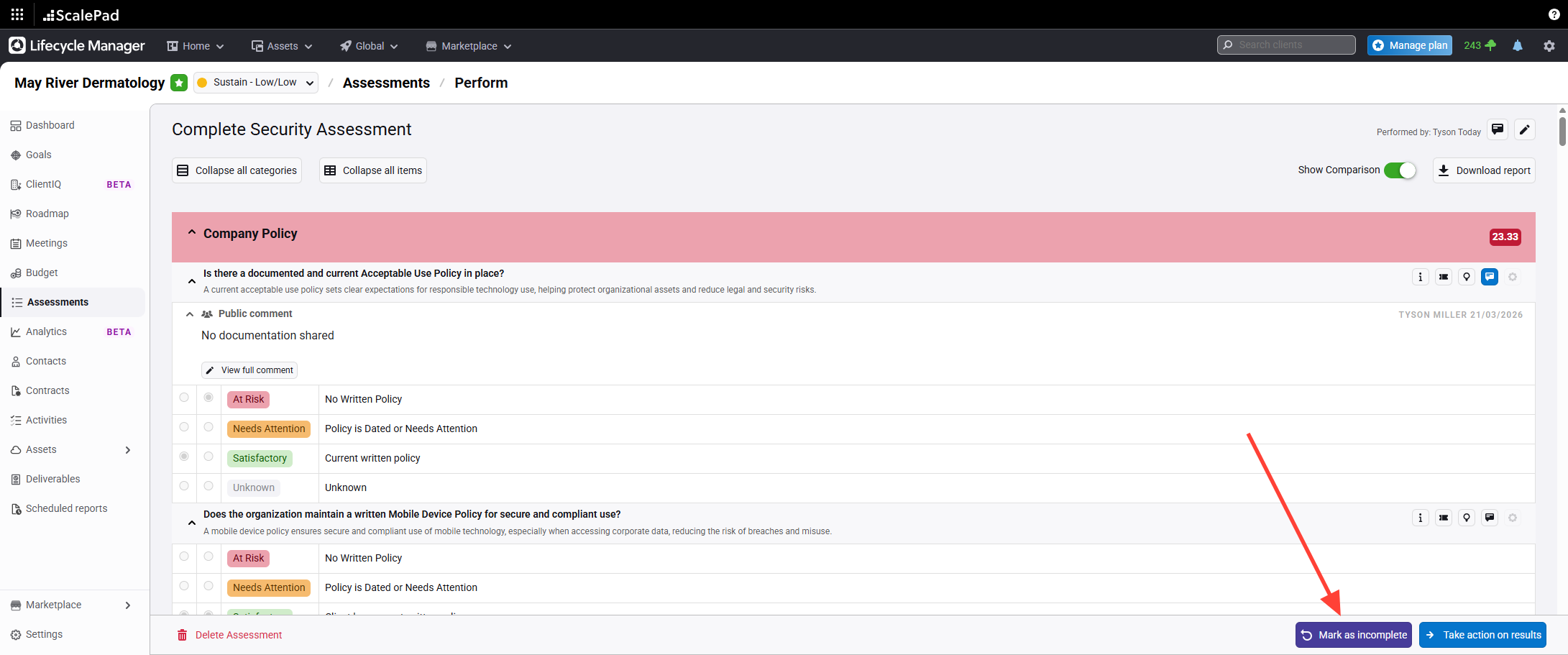
Click Mark as incomplete if you need to edit the assessment after marking it complete.
Marking an Assessment as "Complete"
Updated on